
Learning how to carry a laptop in a backpack involves placing your device into a dedicated, padded sleeve in the rear compartment, securing it upright against the back panel to prevent damage.
How to carry a laptop in a backpack: Essential gear
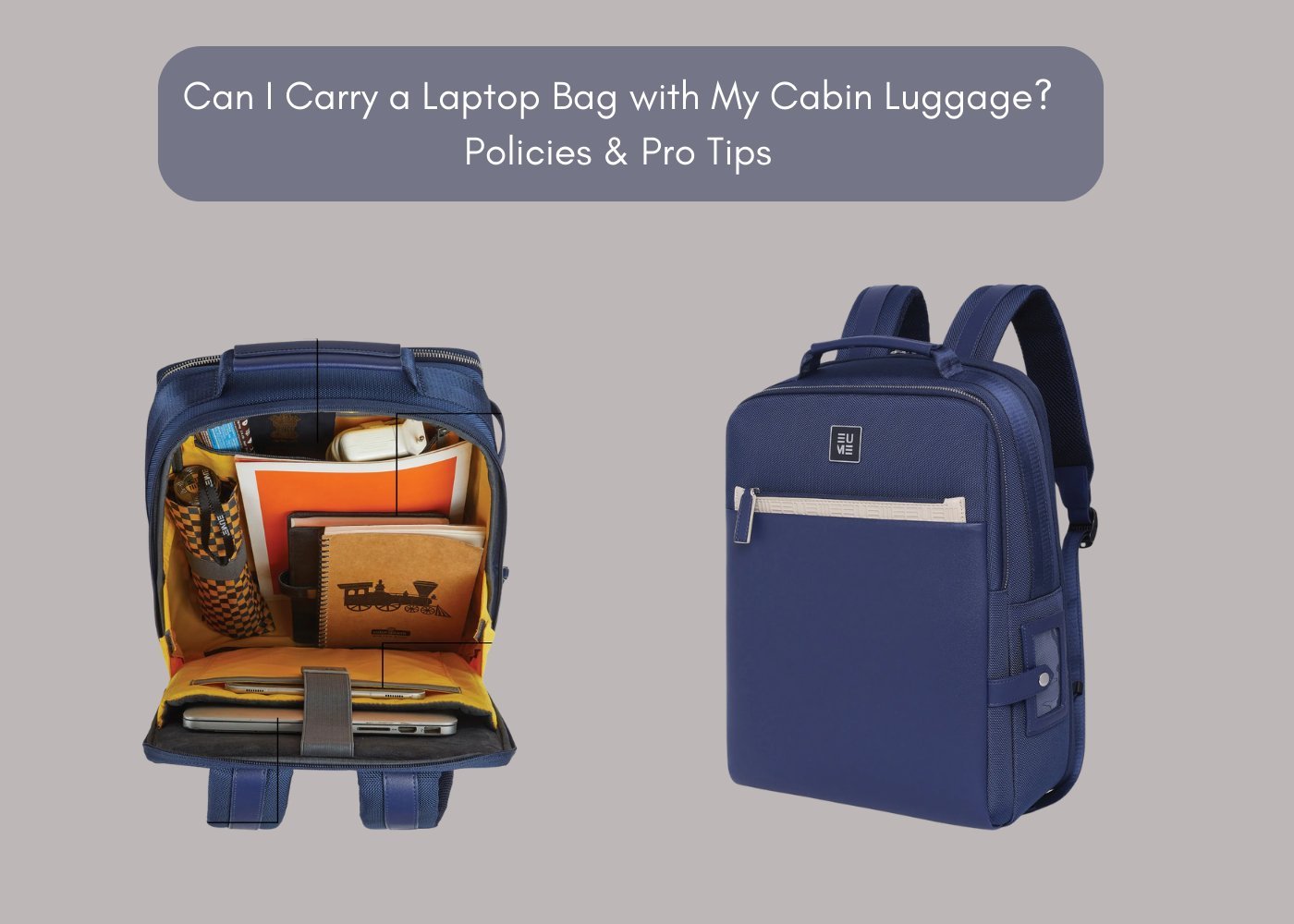
- Padded laptop sleeve: A case that fits your specific screen size to absorb shock.
- Backpack with a laptop compartment: A bag featuring a raised, padded internal pocket.
- Cable organizer: A small pouch to keep power bricks from scratching the device casing.
- Screen cleaning cloth: Microfiber works best to prevent dust buildup.
- Rain cover: An optional waterproof shell for your bag.
If your bag lacks a dedicated sleeve, you must use a standalone padded case. A thin cloth sleeve won’t protect the device from heavy impacts.
Step-by-step
- Check that the laptop is fully powered down or in hibernation mode.
- Slide the device into a dedicated, padded sleeve to add an extra layer of protection against minor bumps.
- Place the laptop into the backpack’s rear compartment, ensuring it sits vertically against the back panel.
- Zip the compartment closed to prevent the device from shifting or sliding out while you’re walking.
- Position heavier items like textbooks or water bottles away from the laptop area to avoid crushing the screen.
- Secure the power adapter and mouse in a separate front pocket to stop them from pressing against the laptop lid.
- Adjust the shoulder straps so the backpack sits high and close to your back to reduce strain and movement.
Tip: Always place the screen side facing your back, as this is the most rigid part of the bag. Careful: Don’t leave your laptop in a hot car, as high temperatures can damage internal components according to the Apple battery care guidelines.
Impact of your gear choices
The time and effort required to pack your bag depend on the equipment you own and your daily routine.
| Situation | Time Needed | Difference | What to Watch |
|---|---|---|---|
| Basic Sleeve | 30 seconds | Adds bulk | Corner fit |
| Dedicated Bag | 10 seconds | Snug fit | Zipper snag |
| Hard Case | 60 seconds | Heavy weight | Hinge stress |
| No Protection | 5 seconds | High risk | Screen cracks |
It’s safer to start with a sturdy, padded bag and add extra protection later than to carry the device unprotected on your first trip.
How to tell you did it right
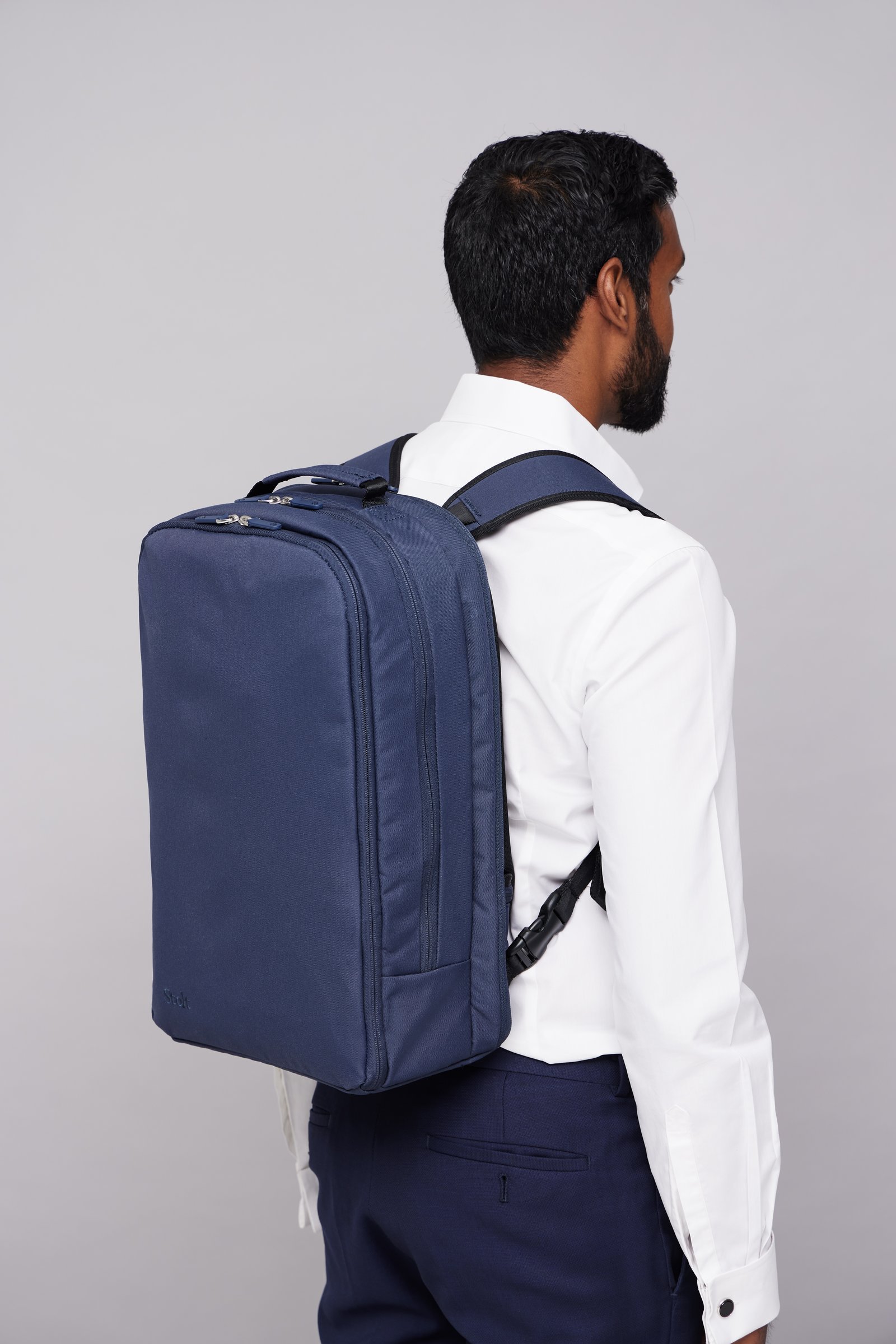
Your laptop should feel immobile when you shake the bag gently. If you hear a thud or feel the device shifting, your bag is too large or the straps are too loose. This movement often happens because the center of gravity is too low, causing the device to hit the bottom of the bag when you walk. You can prevent this by using a bag with a “floating” compartment, which keeps the laptop off the floor of the pack. If the device feels cool to the touch after a long commute, you have managed ventilation successfully.
Essential safety standards
Follow the weight distribution rules set by the American Occupational Therapy Association to avoid back injury, which suggest your bag shouldn’t exceed ten percent of your body weight. Clear out loose pens, metal tools, or sharp keys from the main compartment before insertion to prevent scratches. Save your work and fully shut down the system every time you prepare to travel. This routine protects your data and hardware for years. If you notice a swollen battery or casing, stop using the bag and consult a professional technician immediately.
Other ways to do it
Using a messenger bag
These bags allow faster access but often lack the vertical stability of a backpack. Use a rigid insert to keep the device from bending when the bag hits your hip while walking.
Rolling laptop luggage
This is best for heavy workstations or long travel days. It removes the weight from your shoulders, though you must ensure the internal straps are tight to prevent the device from sliding inside.
Protective tech pouches
If you prefer a casual backpack, use a hardshell case inside your bag. This adds significant weight but provides the highest level of crush protection for expensive hardware during busy commutes.
Frequently asked questions
Can I carry a laptop in a backpack without a sleeve?
No, you should never carry a laptop without a sleeve because the device will rub against other items. This causes deep scratches on the lid and increases the risk of screen damage from external pressure or small impacts.
Why is my laptop hot when I take it out?
How long can a laptop stay in a backpack?
A laptop can stay in a backpack for as long as you need, provided the bag is kept in a climate-controlled area. Avoid leaving it in your bag overnight in extreme cold or heat to protect the battery.
Is it safe to carry a laptop with a water bottle?
It’s safe only if the water bottle is in a separate, sealed side pocket. Never put a liquid container inside the main compartment with your laptop, as a leak will cause immediate, permanent damage to the motherboard.
What happens if I drop my backpack with a laptop inside?
You risk cracking the screen or damaging the internal hard drive if the bag hits the ground. Even with a sleeve, the force of a drop can snap thin components, so always set your bag down carefully.
Final Thoughts
Once your gear is tucked away, you’ll feel much more confident heading out the door. Don’t forget to check your zippers before you start moving, as they’re your final line of defense against accidental spills. It’s a small habit that’ll keep your tech safe and sound wherever your day takes you.