
A good webcam can make a big difference.
It can make video calls look better. It can also make streams look cleaner and more sharp.
The Logitech MX Brio Ultra HD 4K Webcam Collaboration and Streaming – Graphite is made for both jobs. It supports 4K video at 30 fps and Full HD video at 60 fps. It also has a large sensor, AI image help, autofocus, and built-in mics.
This webcam is aimed at people who want more than a basic laptop camera.
It can fit home offices, work calls, online classes, live streams, and content work.
In this Logitech MX Brio Ultra HD 4K Webcam Collaboration and Streaming – Graphite review, I will look at its main features, video quality, sound, setup, design, pros, cons, and overall value.
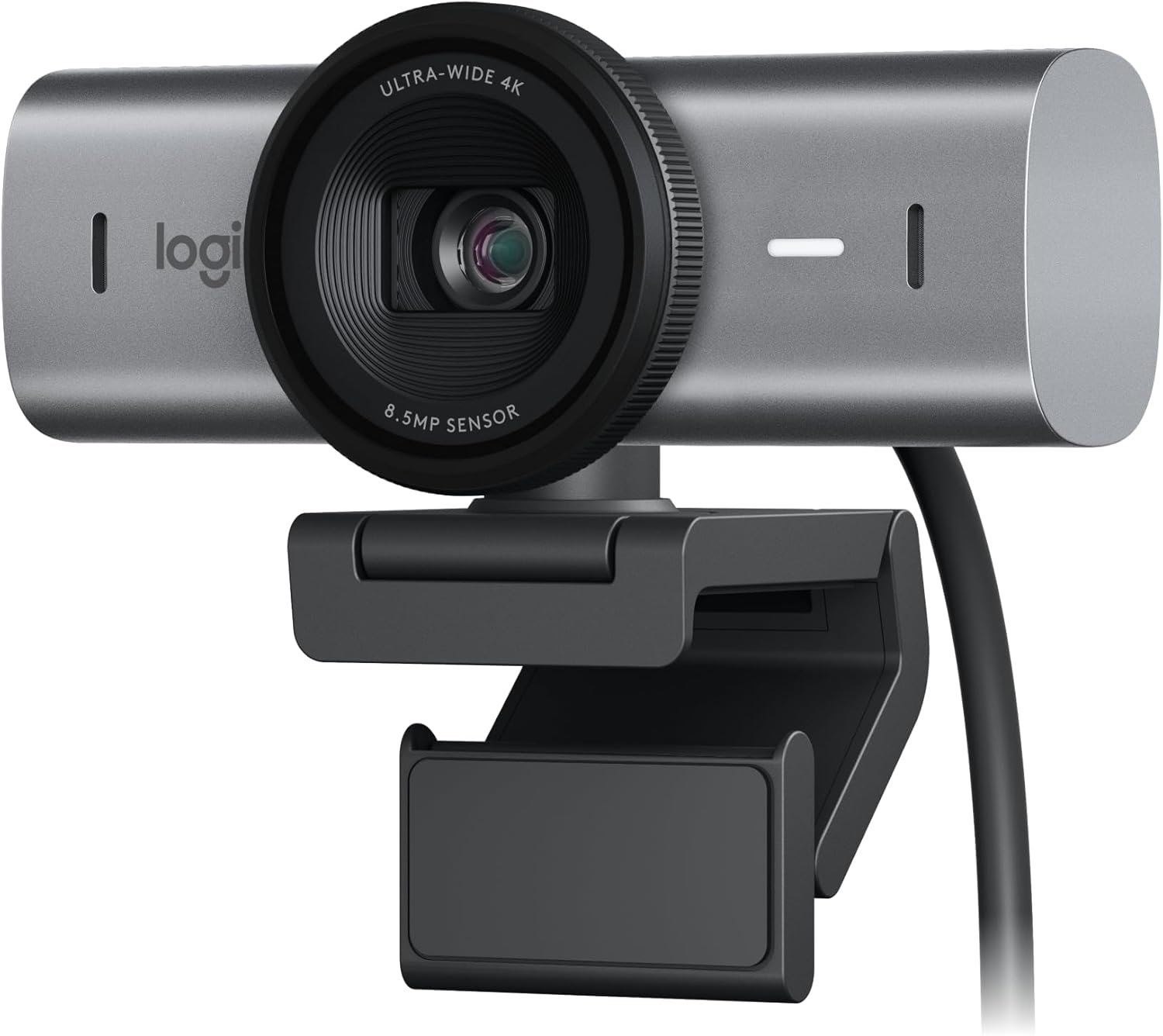
Logitech MX Brio Ultra HD 4K Webcam Review
What Is the Logitech MX Brio?
The Logitech MX Brio is a premium USB webcam built for video calls and streaming.
It records video in up to 4K Ultra HD at 30 fps. It can also record at 1080p up to 60 fps.
The webcam uses a large sensor with larger pixels. This helps it capture more detail, especially when the room is not very bright.
It also uses AI image enhancement. This is designed to improve face detail and keep the image clear in hard lighting.
For someone who spends a lot of time on video calls or streams, these features can be useful.
Video Quality
Video quality is the main reason to consider the MX Brio.
The webcam supports 4K video at 30 fps. That gives you a sharp image with plenty of detail.
You can also switch to 1080p at 60 fps.
That lower resolution can be a better choice for streaming. The higher frame rate can make movement look smoother.
The large sensor is another strong point.
Logitech says the MX Brio has 70% larger pixels than its older Brio 4K webcam. The company also says it can provide up to two times finer image detail and face visibility than the Brio 4K.
That makes the MX Brio more interesting for rooms with weak or uneven light.
Low-Light Performance
Not every desk has perfect lighting.
You may sit near a window. You may have a lamp behind you. Or your room may simply be a bit dark.
The MX Brio is built to handle these situations better.
Its larger sensor helps capture more light. Its image processing also helps improve the face image.
This does not mean you can forget about lighting.
A small desk light can still make a big difference.
But the MX Brio gives you more help when the lighting is not ideal.
AI Image Enhancement
The AI image enhancement is one of the newer features of the MX Brio.
It works to improve the look of your face in the video.
This can help keep facial detail clear during calls and streams.
I like this idea because webcam video can lose detail when the room is dark.
The AI feature is not a replacement for good lighting. Still, it can make the camera more useful in real home-office conditions.
Field of View
The MX Brio gives you three viewing options.
You can choose from:
- 65 degrees
- 78 degrees
- 90 degrees
The 65-degree view is useful when you want a tighter view of your face and shoulders.
The 78-degree option gives you a little more space.
The 90-degree setting is better when you want to show more of your desk or room.
This makes the webcam flexible for different types of use.
A streamer may want a wider view. A work call may look better with a tighter frame.
Autofocus
The MX Brio has autofocus.
That matters when you move closer to the camera or lean back from your desk.
A fixed-focus webcam can look soft when the subject changes distance.
Autofocus helps keep the subject clear.
For meetings and casual streaming, this is a useful feature to have.
4K or 1080p?
This is an important question.
You do not always need 4K.
4K gives you more detail. It is useful for recording, high-quality calls, and some streaming setups.
But 1080p at 60 fps may be the better everyday choice.
It uses less data than 4K. It also gives you smoother motion.
So I would not buy the MX Brio only because it says 4K.
I would buy it for the full package.
You get 4K when you need detail. You get 1080p at 60 fps when you want smoother video.
Microphone Quality
The MX Brio has built-in microphones for calls and streams.
This means you can start using the webcam without buying a separate microphone right away.
That is convenient.
For normal meetings and calls, built-in webcam mics can be enough.
But serious streamers may still want a dedicated USB or XLR microphone.
A separate microphone can give you better control over voice quality.
So I see the MX Brio microphone as a useful built-in option rather than a replacement for a high-end recording mic.
Design and Build Quality
The MX Brio has a clean and modern look.
The Graphite finish also works well with most desk setups.
It is not a tiny webcam, but it still has a fairly simple shape.
The webcam weighs about 6.1 ounces.
It comes with a mounting system for a monitor or laptop. It also supports a standard 1/4-inch tripod mount.
That gives you more freedom when setting up your camera.
You can place it on your monitor for normal calls. You can also use a tripod if you want a different camera position.
Privacy Shutter
Privacy is easy to overlook with webcams.
The MX Brio includes a privacy shutter.
You can cover the lens when the camera is not in use.
This is a simple feature, but I consider it important.
You do not need to rely only on software to know whether the camera is covered.
A physical shutter gives you a clear way to block the lens.
USB Connection
The MX Brio uses USB-C connectivity.
This is useful for newer computers and laptops.
The included cable is about 1.5 meters long.
That gives you enough length for most desk setups.
Still, you should check your computer ports before buying.
If your setup needs a different connection, you may need an adapter or another cable.
Software and Controls
The MX Brio works with Logitech software for camera controls.
You can adjust settings such as image appearance and framing.
This is helpful because webcam performance can change from room to room.
One setup may need more brightness.
Another may need a different field of view.
Having software controls gives you more options than a basic plug-and-play webcam.
The important thing is that you can start with simple settings and adjust them later.
Video Calls
The MX Brio makes sense for people who spend many hours in online meetings.
The 4K sensor gives you plenty of detail.
The adjustable field of view lets you control how much of the room appears behind you.
Autofocus helps keep the image sharp.
The built-in microphones also make the webcam ready for calls without extra hardware.
It supports common video meeting platforms, including Zoom, Microsoft Teams, and Google Meet.
That makes it a good fit for home offices and remote work.
Streaming
The MX Brio can also work well for streaming.
4K at 30 fps gives you a high-detail image.
For smoother motion, 1080p at 60 fps is available.
The wider field-of-view setting can also help if you want to show more of your setup.
For a new streamer, this could be enough to build a simple setup around.
For a serious creator, you may still want extra lighting and a better microphone.
The camera can be the strong video part of that setup.
Who Should Buy the Logitech MX Brio?
I would look at the MX Brio if you:
- Want a premium webcam
- Need 4K video
- Stream content online
- Work from home
- Make video content
- Take many video calls
- Want better low-light performance
- Need adjustable framing
- Prefer USB-C
- Want a physical privacy shutter
It is more than most people need for simple video calls.
But for people who care about camera quality, its extra features make more sense.
Who Should Skip It?
I would skip the MX Brio if you only need a basic webcam for occasional calls.
You may not notice enough difference to justify a premium webcam.
It may also be unnecessary if you already own a good camera.
Another reason to skip it is if you want professional audio from the webcam itself.
The built-in microphones are convenient, but serious creators may prefer a dedicated microphone.
Logitech MX Brio Specs
| Feature | Details |
|---|---|
| Maximum Resolution | 4K Ultra HD |
| 4K Frame Rate | 30 fps |
| Full HD | 1080p up to 60 fps |
| Sensor | Large sensor |
| Focus | Autofocus |
| Field of View | 65°, 78°, 90° |
| AI Enhancement | Yes |
| Microphones | Built-in microphones |
| Connection | USB-C |
| Cable Length | 1.5 m |
| Privacy Shutter | Yes |
| Tripod Support | Yes |
| Color | Graphite |
| Main Uses | Video calls, streaming, recording |
Pros and Cons
Pros
- Sharp 4K video
- 1080p at 60 fps
- Large image sensor
- AI image enhancement
- Good help in difficult lighting
- Autofocus
- Three field-of-view options
- USB-C connection
- Built-in microphones
- Physical privacy shutter
- Tripod mounting support
- Good fit for work and streaming
Cons
- Premium price
- 4K is limited to 30 fps
- A dedicated microphone can still sound better
- Good lighting is still important
- May be more webcam than casual users need
- Requires software for some advanced controls
Is the Logitech MX Brio Worth It?
The Logitech MX Brio is worth considering if image quality is your main goal.
It gives you 4K video, a large sensor, AI image enhancement, autofocus, and several framing options.
That is a strong feature set.
I especially like the flexibility between 4K at 30 fps and 1080p at 60 fps.
You can use 4K when you want more detail.
You can switch to 1080p when smooth motion matters more.
The MX Brio is not the cheapest webcam.
That is clear.
But it is also not trying to be a basic webcam.
It is designed for people who care about video quality and want one camera that can handle both meetings and streaming.
Logitech MX Brio Ultra HD 4K Webcam Collaboration and Streaming – Graphite Reviews: Final Verdict
The Logitech MX Brio Ultra HD 4K Webcam Collaboration and Streaming – Graphite is a strong premium webcam.
Its biggest strength is video quality.
The 4K resolution gives you high detail. The large sensor helps in difficult light. AI image enhancement adds another layer of image processing.
I also like the choice of three viewing angles.
That makes the webcam easier to use for different setups.
The 1080p 60 fps mode is another useful option for streaming.
There are a few limits.
4K is capped at 30 fps. The built-in microphones are useful, but serious creators may still want a dedicated mic. And casual users may not need all these features.
For remote workers, streamers, creators, and anyone who wants a better webcam, the MX Brio is a compelling choice.
My overall take: The Logitech MX Brio is a feature-rich 4K webcam for people who want sharp video, flexible framing, and better performance in everyday lighting.
Frequently Asked Questions
Is the Logitech MX Brio a 4K webcam?
Yes. The MX Brio supports 4K Ultra HD video at up to 30 fps.
Can the MX Brio record at 60 fps?
Yes. It supports 1080p video at up to 60 fps.
Does the Logitech MX Brio have autofocus?
Yes. The MX Brio has autofocus to help keep the subject sharp at different distances.
Does the MX Brio work in low light?
It is designed to perform better in difficult lighting. Its larger sensor and image enhancement help improve detail when lighting is not ideal.
Does the MX Brio have a microphone?
Yes. It has built-in microphones for voice calls and other everyday use.
Can I use the MX Brio for streaming?
Yes. The MX Brio supports 4K at 30 fps and 1080p at 60 fps, making it suitable for many streaming setups.
Does the MX Brio have a privacy cover?
Yes. It includes a physical privacy shutter that can cover the camera lens.
Can I mount the MX Brio on a tripod?
Yes. The webcam supports a standard 1/4-inch tripod mount.
Does the MX Brio use USB-C?
Yes. The MX Brio connects through USB-C.
Is the Logitech MX Brio good for Zoom?
Yes. It is designed for video collaboration and works with popular meeting platforms such as Zoom, Microsoft Teams, and Google Meet.
Is the MX Brio good for home offices?
Yes. Its 4K video, autofocus, built-in microphones, privacy shutter, and adjustable field of view make it a strong option for home-office video calls.
Is the MX Brio worth buying for casual video calls?
It depends on your needs. If you only make occasional calls, a cheaper webcam may be enough. If you want better video quality and more camera controls, the MX Brio offers much more.