
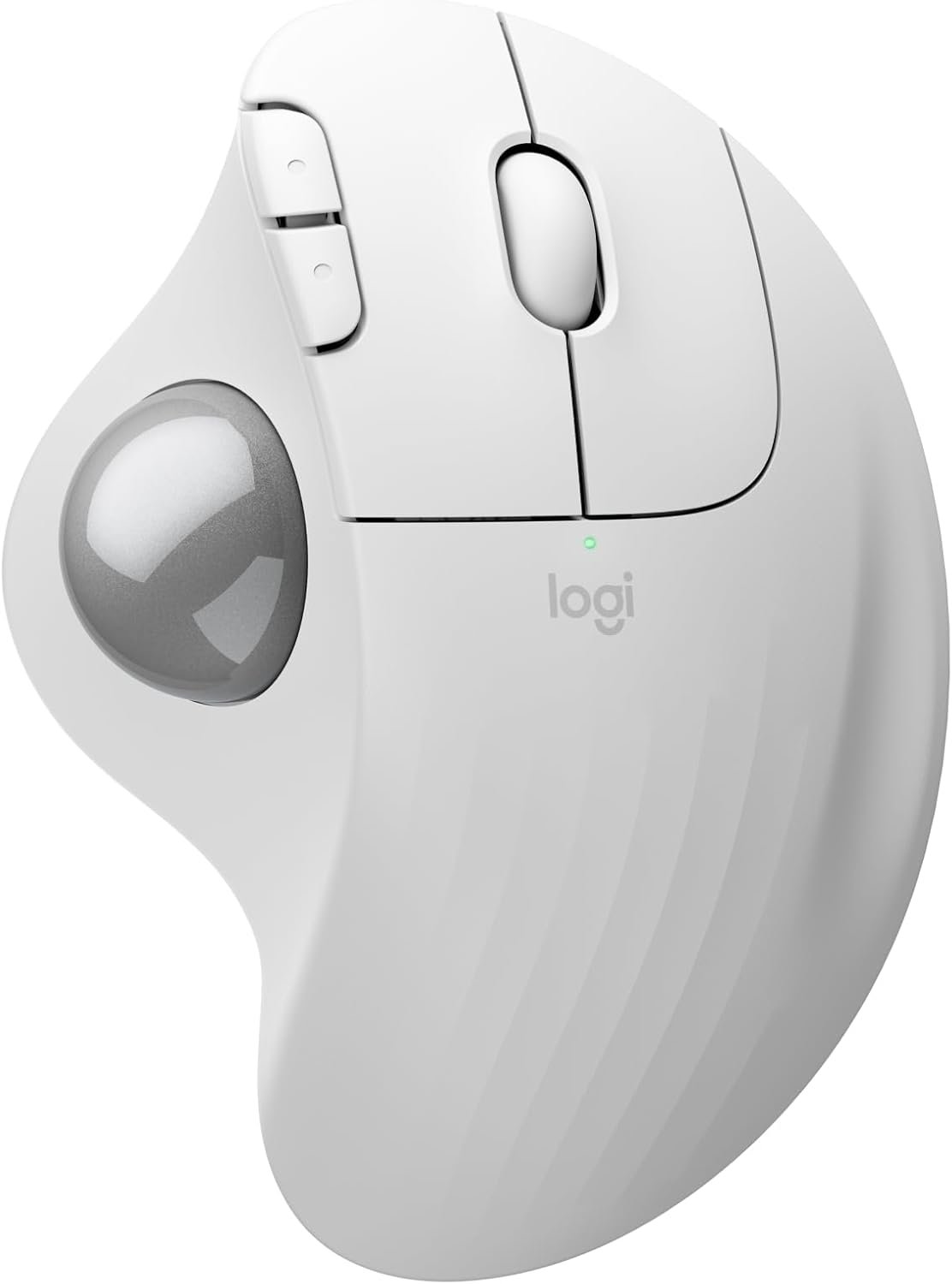
If you spend long hours at a desk, a normal mouse can feel tiring. You move your whole hand again and again just to move the pointer. The Logitech Ergo M575S Wireless Trackball Mouse takes a different approach.
Instead of moving the mouse, you move the trackball with your thumb. This keeps the mouse in one place and cuts down on hand movement. The M575S also has quiet clicks, wireless support, an ergonomic right-hand shape, and three customizable buttons.
In this Logitech Ergo M575S Wireless Trackball Mouse- Off-White Silver Ball review, I look at its design, comfort, tracking, battery, wireless use, buttons, and daily value. I also cover the main pros and cons so you can see if this trackball mouse fits your desk.
Logitech Ergo M575S Review: Quick Answer
The Logitech Ergo M575S is a good pick if comfort and low hand movement matter more to you than a normal mouse feel.
Its biggest feature is the thumb-controlled trackball. You do not need to slide the mouse around your desk. This makes it useful for small desks and tight spaces.
The clicks are also much quieter than the older ERGO M575. Logitech says the M575S click noise is reduced by 80% compared with the M575.
The main catch is simple. A trackball feels different from a regular mouse. New users may need some time to get used to thumb control.
Quick Rating
| Feature | My Take |
|---|---|
| Design | 9/10 |
| Comfort | 9/10 |
| Tracking | 9/10 |
| Wireless use | 9/10 |
| Quiet clicks | 9/10 |
| Button options | 8/10 |
| Small desk use | 10/10 |
| Gaming | 6/10 |
| Overall | 9/10 |
What Is the Logitech Ergo M575S?
The Logitech Ergo M575S is a right-handed wireless trackball mouse.
It has a large trackball on the left side. You control that ball with your thumb. Your palm stays on the shaped body while the mouse itself stays still.
This is the main reason to buy it.
A normal mouse needs desk space. The M575S does not. You can move the pointer while the mouse stays in the same spot.
That can be a big help if your desk is small.
The M575S also has five main controls. These include the left and right mouse buttons, back and forward buttons, and a scroll wheel with middle click.
Three of these controls can be customized with Logitech’s software.
My Take on the Design
The first thing I notice about the M575S is its shape.
It is not a small travel mouse. It has a full-size body made to support your hand. The right-hand shape gives your palm a natural place to rest.
The off-white finish also gives it a clean look.
I like that Logitech did not make the design too flashy. There are no bright lights or gaming-style shapes. It looks more at home in an office than on a gaming desk.
The trackball is easy to spot and easy to reach with the thumb.
The mouse measures about 5.28 inches tall, 3.94 inches wide, and 1.89 inches deep. It weighs about 5.11 ounces with the battery.
So, it has some weight to it.
That weight can be useful because the mouse does not need to slide around during normal use.
Comfort and Ergonomics
Comfort is the main reason I would consider the M575S.
The shape supports the hand while the thumb controls the pointer. Your arm does not need to move across the desk every time you want to move the cursor.
This can make a long work session feel less busy.
Logitech says its ergonomic design is tested and certified by ergonomists. The company also says the design can reduce forearm muscle strain by 25%.
I would not treat that number as a personal health promise. Everyone’s hand and posture are different.
Still, the basic idea makes sense.
Your hand stays in one place. Your thumb does most of the cursor work. Your arm has much less movement than it would with a normal mouse.
For office work, browsing, writing, and long computer sessions, that is a useful design.
Trackball Performance
The trackball is the heart of this mouse.
It uses your thumb for pointer control. You roll the ball left, right, up, or down to move the cursor.
This can feel strange at first.
If you have only used normal mice, your brain expects the whole mouse to move. With the M575S, the mouse stays still.
After you get used to it, the setup can feel very natural.
The sensor supports cursor speeds up to 2,000 DPI. That gives you enough range for normal office work, web browsing, photo work, and general desktop use.
For fast competitive gaming, I would choose a gaming mouse instead.
The M575S is built around comfort and control, not gaming speed.
Quiet Clicks Are a Nice Upgrade
One of the best changes in the M575S is the quieter click sound.
Logitech says the M575S is 80% quieter than the older ERGO M575.
That matters if you work near other people.
A loud mouse click can become annoying after hours of use. The quieter switches make the M575S better suited to an office, shared room, library, or late-night desk.
The clicks still have a clear feel.
So you get a quieter sound without losing the basic mouse feedback.
Wireless Connectivity
The M575S supports two wireless connection methods.
You can use Bluetooth Low Energy or the included USB receiver.
This gives you more choice.
Bluetooth is useful when you want to save a USB port. The receiver is handy when you want a simple plug-and-use setup.
The wireless range is rated at up to 33 feet, or about 10 meters, in suitable conditions.
For a desk setup, that is more than enough.
I also like that there is no cable running across the desk. The clean setup fits the simple look of the mouse.
Battery Life
The M575S uses one AA battery.
That is easy to replace and easy to find.
Logitech rates the battery for long use. The exact result can vary based on connection type and how you use the mouse.
This is not a mouse that needs daily charging.
That is a nice benefit if you do not want another device sitting on a charging cable.
There is also a battery indicator to help you keep track of power.
Buttons and Custom Controls
The M575S has five buttons.
You get:
- Left click
- Right click
- Back
- Forward
- Scroll wheel with middle click
Three controls can be customized.
This is where the mouse becomes more useful for work.
You can set shortcuts for tasks you use often. You can also adjust the cursor speed in Logitech’s software.
For example, a back or forward button can make web browsing faster. A custom middle-click action can also save time during daily work.
The best part is that you do not need to move your hand around the mouse to reach these controls.
Small Desk Performance
This is one area where the M575S really stands out.
A normal mouse needs room to move.
The M575S does not.
If your keyboard, monitor stand, notebook, or other gear takes up most of your desk, a trackball can solve a real problem.
You can place the mouse in one spot and use the thumb to move the pointer.
That makes it a strong option for small workstations.
It can also work well if you often use a laptop on a small table.
Software Experience
The M575S works with Logitech’s Logi Options+ app on supported systems.
The software lets you customize supported buttons and change cursor speed.
This is useful because different people use their mouse in different ways.
One person may want browser shortcuts.
Another may want a work shortcut.
Someone else may prefer simple default controls.
The software gives you room to make the mouse fit your own routine.
Is the Logitech Ergo M575S Good for Work?
Yes.
For office work, I think the M575S makes a lot of sense.
The trackball reduces arm movement. The body supports the hand. The clicks are quiet. Wireless connection keeps the desk clean.
It is especially useful for:
- Writing
- Web browsing
- Office work
- Research
- Coding
- Spreadsheet work
- Long desk sessions
- Small workspaces
The only real learning curve is the trackball.
Once you become comfortable with thumb control, the design can feel very efficient.
Is It Good for Gaming?
This is not my first choice for gaming.
The M575S is made for comfort and everyday control.
A gaming mouse usually offers a lighter body, faster movement, more buttons, higher tracking options, or gaming-focused features.
The M575S is better for work than competitive games.
For casual games, it can still work.
But if gaming is your main reason for buying a mouse, I would look elsewhere.
Pros and Cons
Pros
- Very comfortable ergonomic shape
- Thumb-controlled trackball
- Requires little desk space
- Quiet clicks
- Bluetooth and USB receiver support
- Up to 10-meter wireless range
- Long battery life
- Five main controls
- Three customizable controls
- Good choice for long work sessions
- Works well on small desks
- Clean off-white design
Cons
- Right-handed design only
- Trackball takes time to learn
- Not designed as a gaming mouse
- Large body may feel bulky to some users
- Uses a replaceable AA battery instead of built-in charging
- Thumb control may not suit everyone
Logitech Ergo M575S vs. a Normal Wireless Mouse
The biggest difference is movement.
A normal mouse moves across your desk.
The M575S stays still.
With the M575S, your thumb controls the pointer. This can save a lot of desk space and reduce arm movement.
A normal mouse may feel more familiar at first.
The M575S may feel better during long sessions once you learn the trackball.
So, I would choose the M575S for comfort and small spaces. I would choose a normal mouse if you prefer a familiar movement style.
Who Should Buy the Logitech Ergo M575S?
I think the M575S is a strong fit for people who spend many hours at a desk.
It is also a smart choice for anyone with limited desk space.
I would consider it for:
- Remote workers
- Office workers
- Writers
- Programmers
- Students
- Researchers
- Laptop users
- People who want less arm movement
- People who like trackballs
- Users who want quiet clicks
The right-handed design is important to remember.
If you use your left hand for the mouse, this is not the best match.
Who Should Skip It?
I would skip the M575S if you want a gaming-first mouse.
I would also skip it if you strongly prefer moving a normal mouse across the desk.
The trackball design is the main feature here.
If you do not like the idea of controlling the pointer with your thumb, another mouse will likely feel more natural.
Logitech Ergo M575S Specifications
| Specification | Details |
|---|---|
| Product type | Wireless trackball mouse |
| Model | ERGO M575S |
| Color | Off-White |
| Trackball control | Thumb |
| Handedness | Right-handed |
| Connectivity | Bluetooth Low Energy + USB receiver |
| Wireless range | Up to 33 ft / 10 m |
| DPI | Up to 2,000 |
| Buttons | 5 |
| Customizable controls | 3 |
| Battery | 1 x AA |
| Size | 5.28 x 3.94 x 1.89 inches |
| Weight | About 5.11 oz / 145 g |
| Software | Logi Options+ |
| Main use | Work, browsing, productivity |
Frequently Asked Questions
Is the Logitech Ergo M575S comfortable?
Yes. Its main purpose is comfort. The sculpted body supports the hand while the thumb controls the trackball. This reduces the need to move your arm across the desk.
Does the Logitech M575S need a mouse pad?
No. The trackball controls the pointer, so you do not need to slide the mouse across a surface.
Is the Logitech Ergo M575S good for small desks?
Yes. This is one of its biggest advantages. The mouse stays in one place, so you need very little desk space.
Is the M575S Bluetooth?
Yes. The M575S supports Bluetooth Low Energy. It can also connect through its wireless USB receiver.
How far can the M575S work from a computer?
The wireless range is rated at up to 33 feet, or about 10 meters, under suitable conditions.
How many buttons does the Logitech M575S have?
It has five main controls. These include left click, right click, back, forward, and the scroll wheel with middle click.
Can I customize the M575S buttons?
Yes. Three controls can be customized through Logitech’s software on supported systems.
Does the M575S have quiet clicks?
Yes. Quiet clicks are one of the main updates in the M575S. Logitech says the clicks are 80% quieter than the older ERGO M575.
What battery does the Logitech M575S use?
It uses one AA battery.
Is the Logitech Ergo M575S rechargeable?
It uses a replaceable AA battery rather than a built-in rechargeable battery.
Is the M575S good for gaming?
It can handle casual games, but it is mainly designed for comfort and productivity. A dedicated gaming mouse is a better choice for serious gaming.
Is the Logitech Ergo M575S good for Mac?
Yes. The mouse supports Mac systems through Bluetooth and compatible wireless connectivity. Logitech’s software also supports customization on supported Mac systems.
Is the Logitech Ergo M575S good for Windows?
Yes. It is designed to work with Windows and supports wireless connection through Bluetooth or the USB receiver.
Is the M575S good for long computer work?
Yes. Its ergonomic shape, thumb control, quiet clicks, and low arm movement make it well suited to long desk sessions.
Does the M575S work with a Chromebook?
Yes. The M575S supports compatible ChromeOS devices.
Final Verdict
The Logitech Ergo M575S Wireless Trackball Mouse is not trying to replace every mouse.
It has a clear goal.
It wants to make everyday computer work more comfortable while using less desk space.
The thumb-controlled trackball is the star of the design. Your hand stays supported, your arm moves less, and the mouse does not need room to slide.
The quiet clicks are another strong upgrade. They make the M575S a better fit for shared work areas and quiet rooms.
I also like the two wireless connection choices, long battery life, customizable controls, and clean off-white design.
The biggest issue is the learning curve.
If you have never used a trackball, the M575S may feel unusual at first. It takes some practice to build good thumb control.
But if comfort, productivity, and small desk space are your main goals, the M575S is easy to recommend.
My final take: The Logitech Ergo M575S is a strong wireless trackball for work, browsing, and long desk sessions. It is especially appealing if you want less arm movement and more comfort without giving up useful mouse controls.